You first need to connect the XR724 Thermostat to Your Wi-Fi Network. If you have previously connected your XR724 control (also XL824 or XL850) to Wi-Fi, or if it is wired to your LAN with an Ethernet cable, skip to the next section.
On your XR724, please proceed as follows.
1. Being on the home screen and press the following sequence of buttons: Menu > Settings > Network > Connect to Wi-Fi Network.
2. Choose your Wi-Fi network and enter the password (you will see a note on the screen if it is successful).
3. Press Home
Nexia Home Intelligence Account Set-up
1. Login to your account (If you don't have one you could Go to MyNexia.com and click "Sign Up" to create a new account).
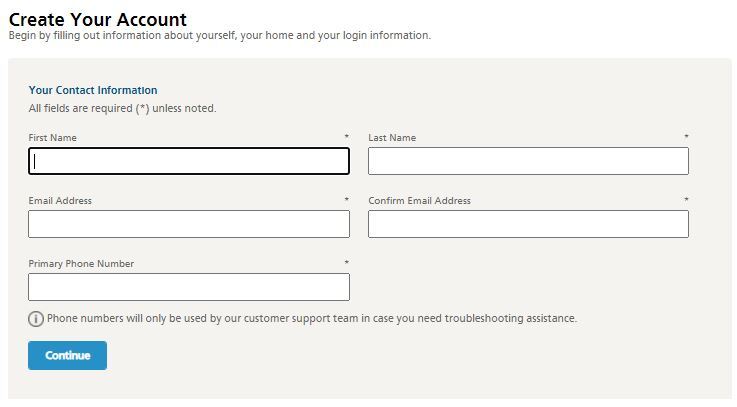
2. Select the Climate tab on the dashboard and then click "Add Device" at the top right corner. Then skip to step #3 below.
3. Proceed until you arrive at a page titled "Choose Your Devices."
4. From the "Thermostats" options choose the "Trane XR724 Control."
5. Proceed until you receive a 5-digit code, write down the code.
6. Press "Start."
Enroll your XR724 on Nexia Home Intelligence
Note: If you are not setting up your XR724 using the built in User Setup Wizard, then on your control you will need to press Menu, then Nexia to proceed.
On your XR724:
- Review and accept the License Agreement.
- Enter the 5-digit code you received from MyNexia.com
- Wait for enrollment to occur. Note: this could take up to 5 minutes.
- After enrollment is complete, you will have the opportunity to rename the XR724 from your computer/phone before finishing the setup.
Now that your Trane XR724 control is enrolled, it will be displayed within the Climate page, found on the left side of the dashboard. This may take one to two minutes to appear. If it does not, try refreshing the page using the browser's refresh button.
For further help, please contact our HVAC experts or Nexia Customer Support line at (877) 288-7707.